Action Bar
An Action Bar is a UI element at the top of interfaces, which offers quick access to essential actions relevant to the current task

- Overview
- Guidelines
Pattern
The Action Bar pattern is a user interface element typically located at the top of a digital interface, providing users with quick access to essential actions, commands, or controls relevant to the current context or task.
It serves as a centralized hub for primary actions, enabling users to efficiently interact with the interface and easily perform key tasks. The Action Bar often contains icons and buttons. By presenting the essential functionalities needed by view, it enhances user productivity, makes tasks easier and contributes to a smooth and intuitive user experience.
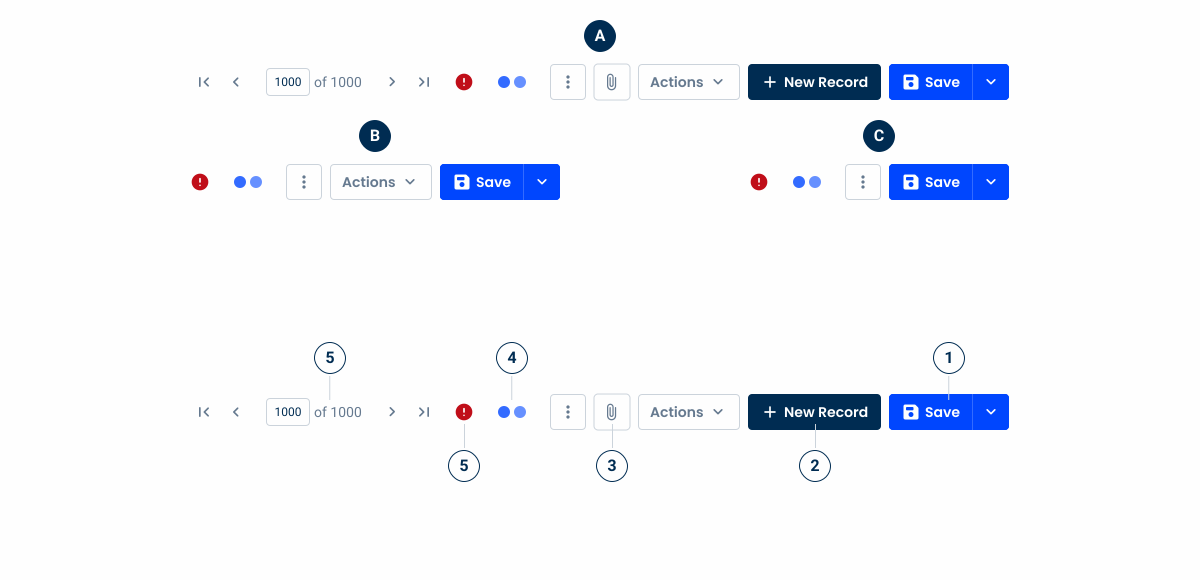
A: Desktop Variation
B: Tablet Variation
C: Mobile Variation
1: Split Button
2: Button
3: Icon Button
4: Overflow Menu
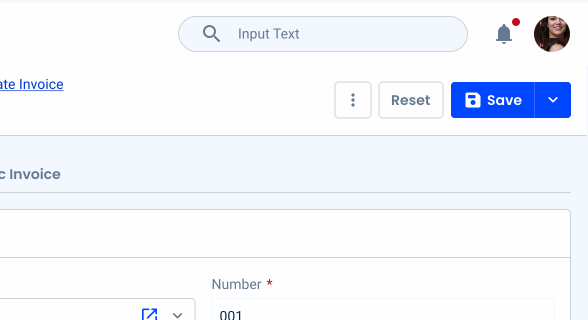
Used for:
Forms
Applied alongside the page title pattern, the Action Bar placed at the top has actions related to the form, such as saving or editing once in read mode;
Table views
Applied alongside the page title pattern, the Action Bar placed at the top has actions related to the table views, such as creating a new entry or editing an existing one;
Modals (form variation)
As in the case of forms, Action bars can be placed inside modals if they are in their form variation;
Centralized access
An Action Bar provides a centralized location to access essential actions, reducing the user’s search for features.
Don’t use for:
Flyouts
In the case of flyouts with limited space in the smaller variations, the action bar is not used in simple form edits, instead only a group of buttons is used;
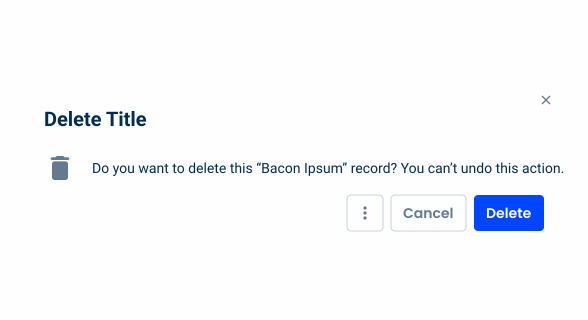
Modals (info variation)
Unlike the form variation, when modals only have simple information such as a confirmation to delete a client form, only a simple group of buttons is used just like the flyout;
Filter drop-downs
As in the case of the modal or the flyout, considering the restricted space there is in filter drop-downs, the Action Bar can’t be used in those contexts;
Space constraints
In interfaces with limited screen space, such as mobile applications or small screens, an Action Bar take up valuable space and hinder the visibility of essential content or functionalities.
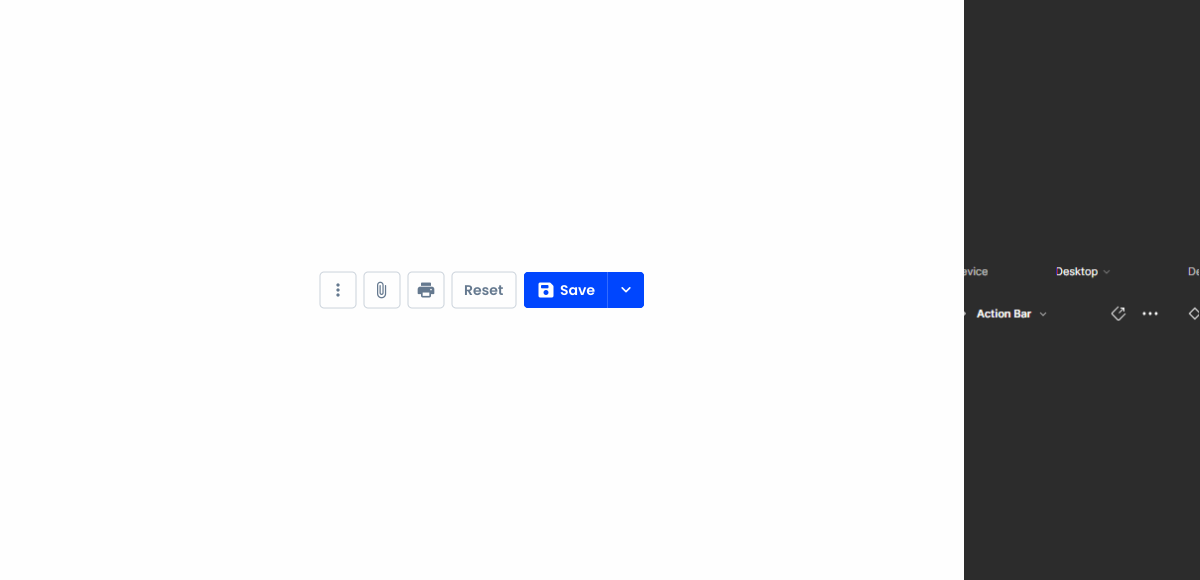
Demo
Access the Figma file and inspect the element using Dev Mode.
Last Update
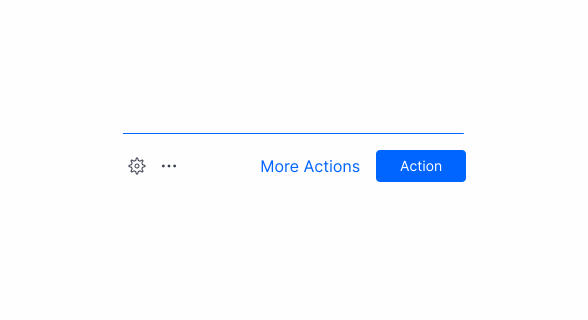
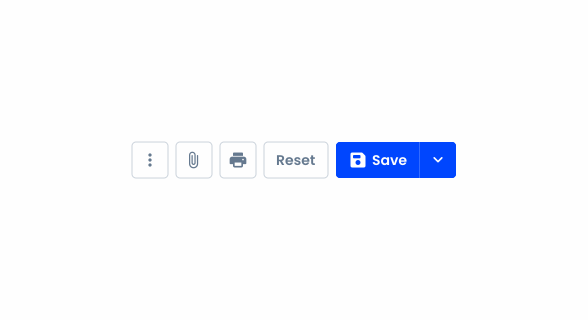
- Simplified pattern;
- Added guidelines to pattern;
Related
Behavior
Devices
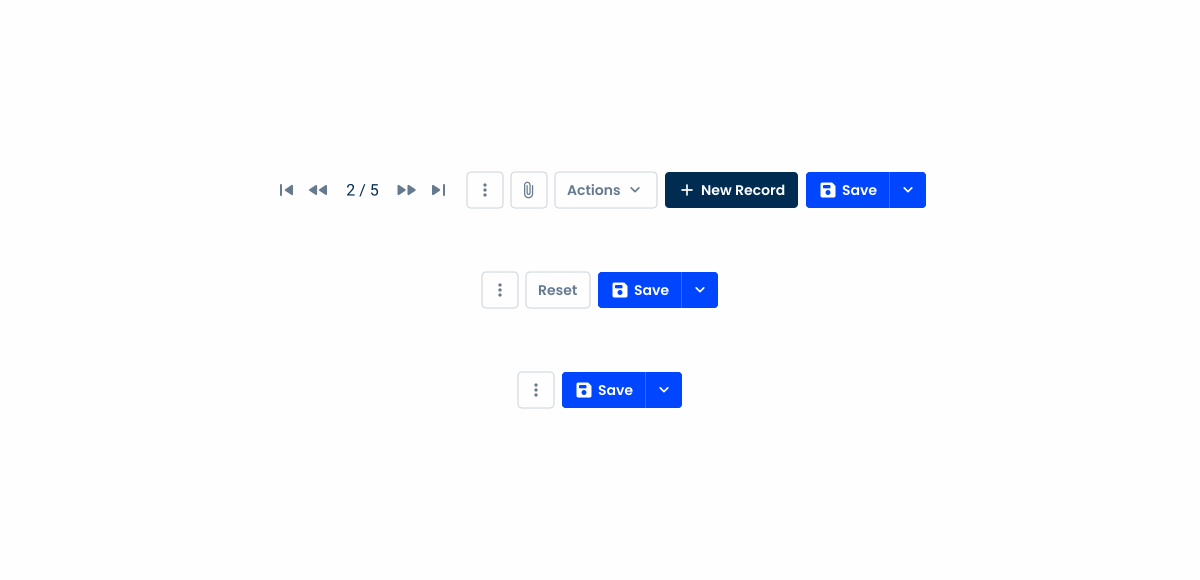
Depending on the screen, certain variations have been created to be applied. There are three variations that have been created for each device and breakpoint, these being: Desktop, Tablet and Mobile. For each of these variations, the number of buttons changes:
- Desktop: two split buttons, two button icons, one button and one overflow menu;
- Tablet: one split button, one button and one overflow menu;
- Mobile: one split button and one overflow menu.
Keep in mind that depending on the needs of each product, the split or regular buttons can be swapped, but the overall number of elements should remain the same.
Pagination
In the case of the Desktop variation, a pagination can be inserted alongside the Action Bar to quickly navigate between pages within the same context (e.g. data grid with filtered data, list of clients in the same country).
Position
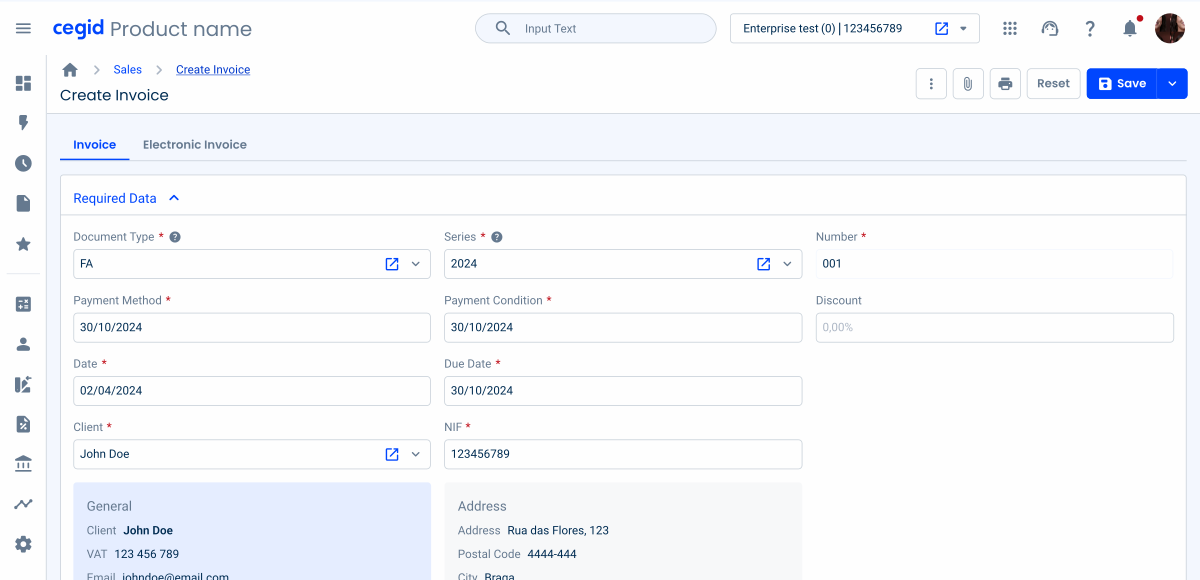
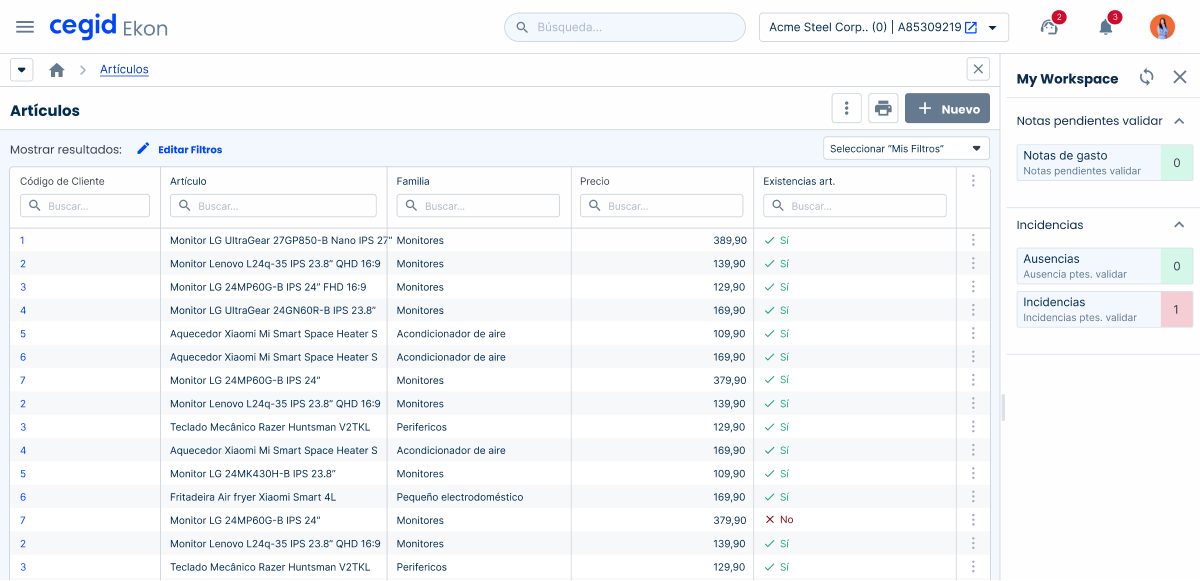
The Action Bar pattern ensures the Action Bar is consistently positioned at the top of the page, just below the topbar.
This guideline enhances usability by maintaining a predictable location for primary actions, improving user navigation and efficiency. By keeping the Action Bar at the top, users can quickly access important functions without unnecessary scrolling, contributing to a seamless and intuitive user experience.
This positioning also aligns with common user expectations, as top-of-page Action Bars are a standard in many interfaces.
Dos & Dont’s
Respect the hierarchy guidelines for the different elements of the Action Bar;
Apply more elements than those mentioned;
Case Studies

Creating Context-Aware Notifications for a Better Experience

Read Mode: Making Content Feel Effortless and Understandable