Button Icons
Button Icons are used for minor actions that can be resumed within one icon.

- Overview
- Specs
- Guidelines
Component
Button icons are used to be displayed within compact layouts, where the desired action can be resumed in one icon and unambiguously.
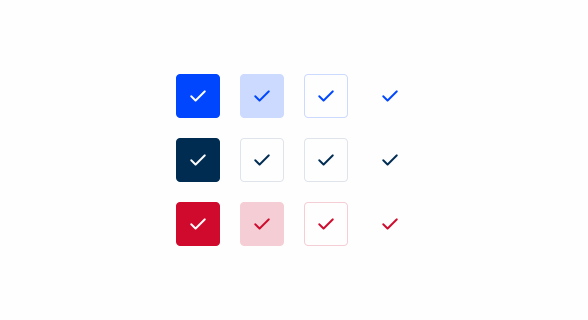
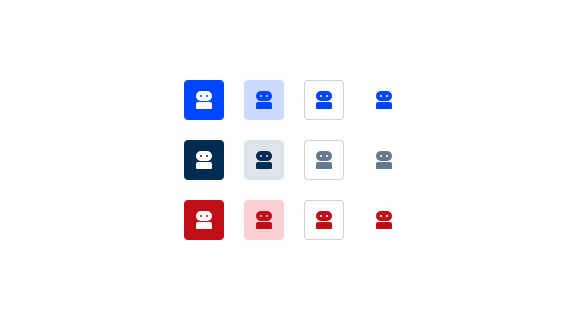
Button icons can be represented with the colors theme, grey and error. Alongside it can be combined with the variations primary, secondary, tertiary and text button. This component follows the same color states as the buttons.
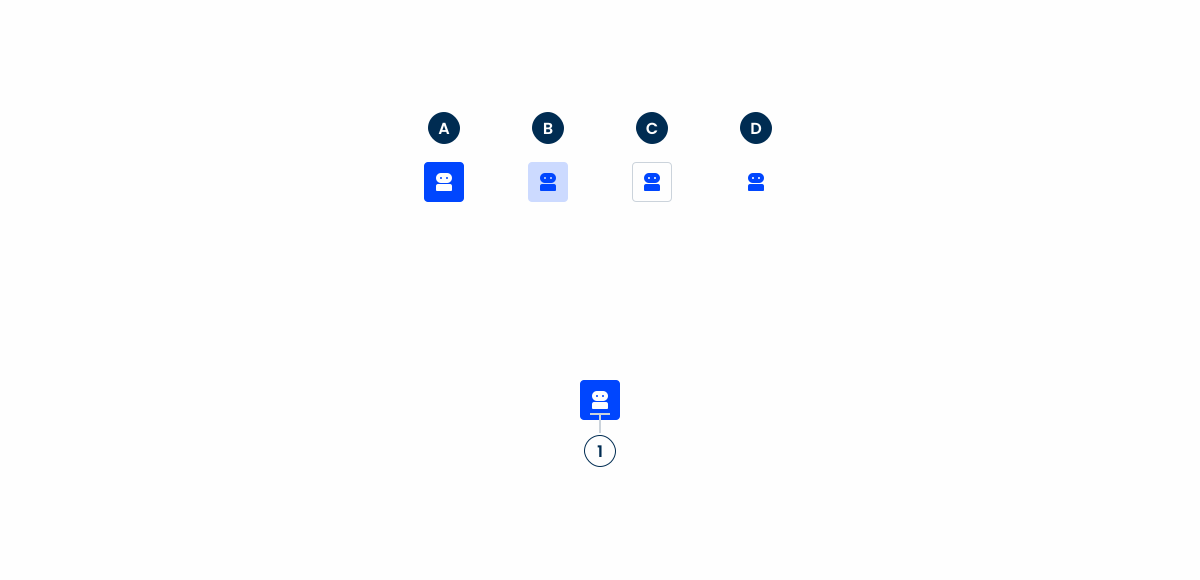
A: Primary variation
B: Secondary variation
C: Tertiary variation
D: Text Button variation
1: Icon
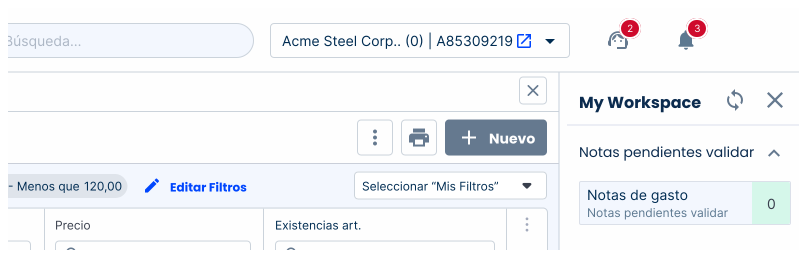
Used for:
Action bar options
Used to provide quick access to frequent actions, such as print and attach;
Sorting and filtering
Enable users to sort and group by columns inside the data-grid pattern;
Messaging actions
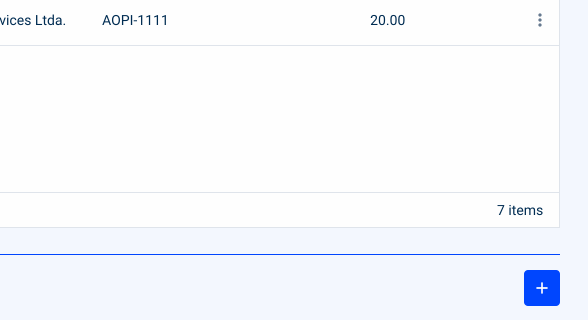
Used to represent a send button without taking to much place;
File management
Complete the process of uploading files or media, either for accepting or canceling the media attached;
Don’t use for:
Insufficient visual cues
It’s not recommended to use button icons when the meaning of the icons is not immediately clear or intuitive;
Accessibility concerns
Do not use button icons to display primary information such as “Save”, in order to maintain the base functionality for persons using a screen reader. Consider using buttons instead;
Overreliance on icons
Avoid overreliance on button icons for critical actions, especially when users may be unfamiliar with the meaning of the icons;
Inconsistent iconography
If the iconography used in button icons is inconsistent or lacks standardization across the interface, users may struggle to interpret their meaning consistently;
Demo
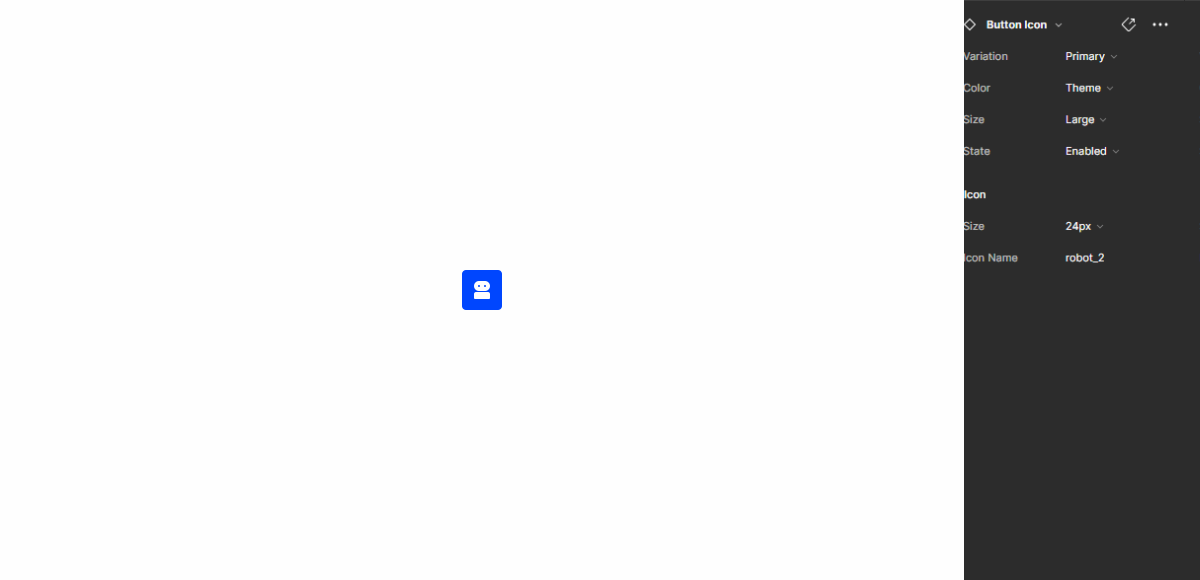
Access the Figma file and inspect element using Dev Mode.
Last Update
- Updated state color variables;
- Reduced color variables;
Related
States
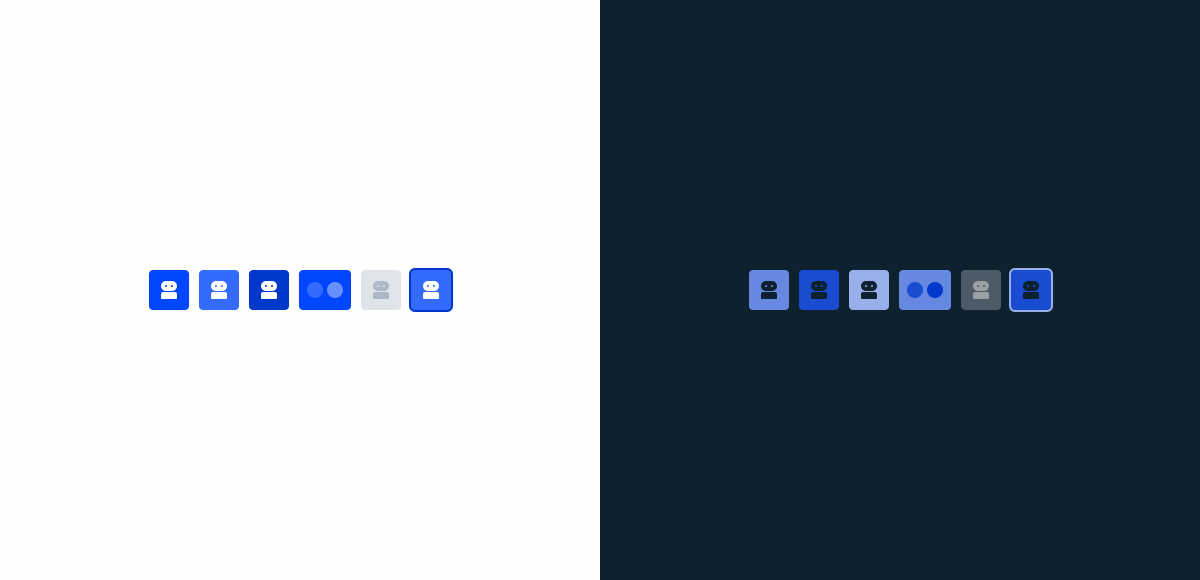
Primary
Enabled
.enabled {
background-color: var(--Theme-100);
color: var(--grey-1);
}
Hover

.hover {
background-color: var(--Theme-80);
color: var(--grey-1);
}
Pressed
.pressed {
background-color: var(--Theme-highlight);
color: var(--grey-1);
}
Loading
.loading {
background-color: var(--Theme-100);
color-1: var(--Theme-80);
color-2: var(--Theme-60);
}
Disabled

.disabled {
background-color: var(--Grey-4);
color: var(--grey-6);
}
Focus
.focus {
background-color: var(--Theme-80);
border-color: var(--Theme-highlight);
color: var(--grey-1);
}
Secondary
Enabled
.enabled {
background-color: var(--Theme-20);
color: var(--Theme-100);
}
Hover
.hover {
background-color: var(--Theme-40);
color: var(--Theme-highlight);
}
Pressed
.pressed {
background-color: var(--Theme-20);
border-color: var(--Theme-80);
color: var(--Theme-100);
}
Loading
.loading {
background-color: var(--Theme-20);
color-1: var(--Theme-80);
color-2: var(--Theme-60);
}
Disabled

.disabled {
background-color: var(--Grey-4);
color: var(--Grey-6);
}
Focus

.focus {
background-color: var(--Theme-20);
border-color: var(--Theme-highlight);
color: var(--Theme-100);
}
Tertiary
Enabled
.enabled {
background-color: var(--Grey-1);
border-color: var(--Grey-5);
color: var(--Theme-100);
}
Hover
.hover {
background-color: var(--Theme-10);
border-color: var(--Grey-5);
color: var(--Theme-100);
}
Pressed
.pressed {
background-color: var(--Theme-20);
border-color: var(--Grey-5);
color: var(--Theme-100);
}
Loading
.loading {
background-color: var(--Grey-1);
border-color: var(--Grey-5);
color-1: var(--Theme-80);
color-2: var(--Theme-60);
}
Disabled
.disabled {
background-color: var(--Grey-2);
border-color: var(--Grey-4);
color: var(--Grey-6);
}
Focus
.focus {
background-color: var(--Grey-1);
border-color: var(--Theme-highlight);
color: var(--Theme-100);
}
Text Button
Enabled
.enabled {
color: var(--Theme-100);
}
Hover
.hover {
background-color: var(--Theme-10);
color: var(--Theme-100);
}
Pressed
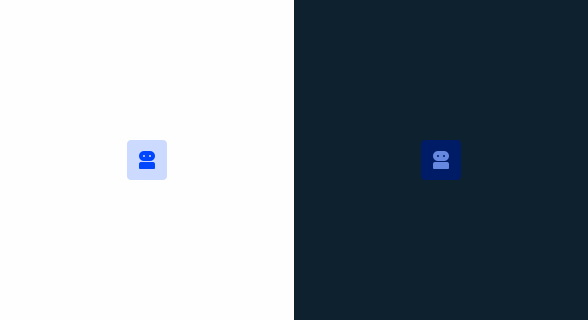
.pressed {
background-color: var(--Theme-20);
color: var(--Theme-100);
}
Loading

.loading {
color-1: var(--Theme-80);
color-2: var(--Theme-60);
}
Disabled

.disabled {
color: var(--Grey-6);
}
Focus
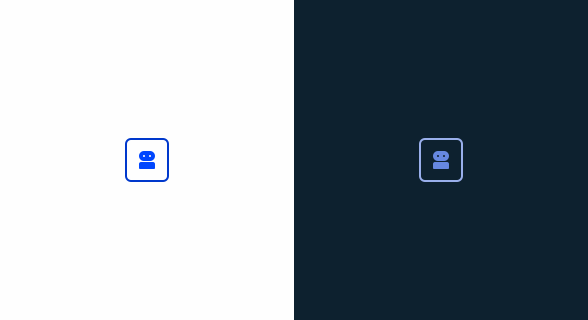
.focus {
border-color: var(--Theme-highlight);
color: var(--Theme-100);
}
Variations
Colors
Theme
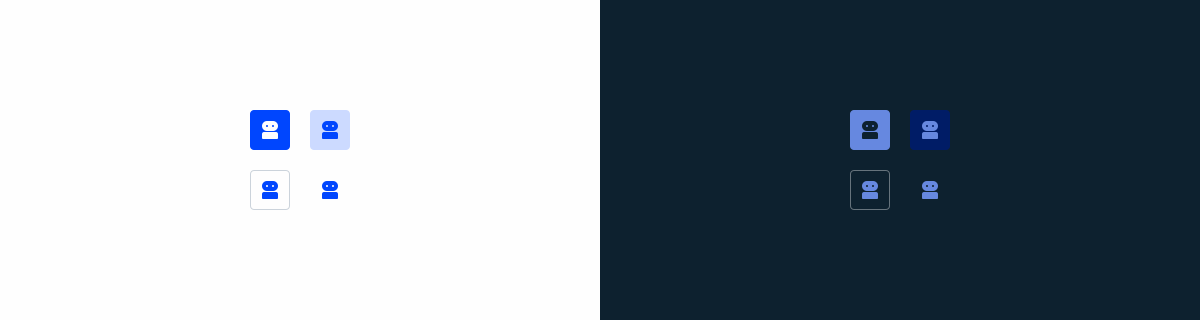
.primary-enabled { background-color: var(--Theme-100); color: var(--dgrey-1); }
.secondary-enabled { background-color: var(--Theme-20); color: var(--Theme-100); }
.tertiary-enabled { background-color: var(--Grey-1); border-color: var(--Grey-5); color: var(--Theme-100); }
.text_button-enabled { color: var(--Theme-100); }
Error
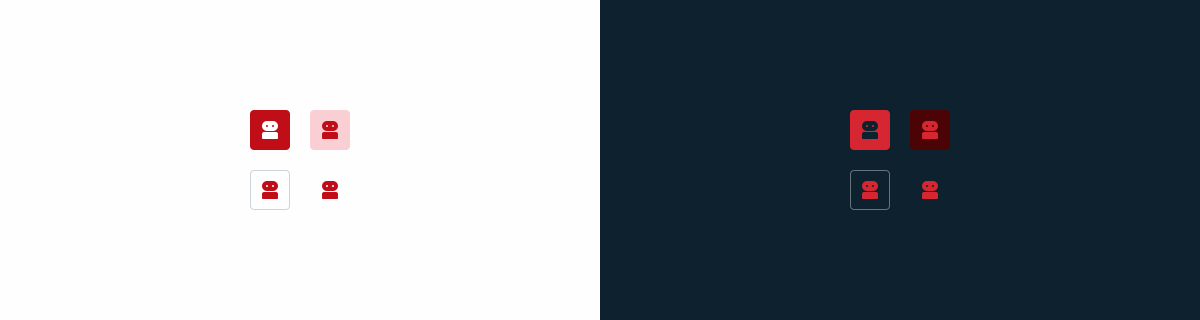
.primary-enabled { background-color: var(--Error-100); color: var(--grey-1); }
.secondary-enabled { background-color: var(--Error-20); color: var(--Error-100); }
.tertiary-enabled { background-color: var(--Grey-1); border-color: var(--Grey-5); color: var(--Error-100); }
.text_button-enabled { color: var(--Error-100); }
Grey
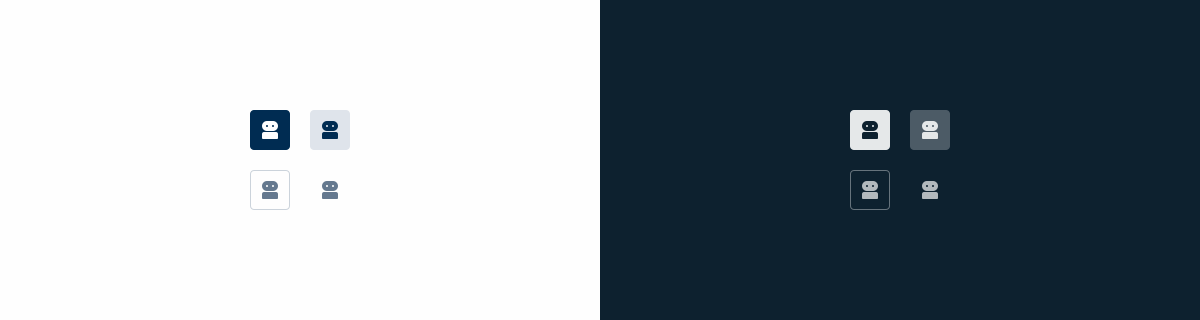
.primary-enabled { background-color: var(--Grey-9); color: var(--grey-1); }
.secondary-enabled { background-color: var(--Grey-2); color: var(--Grey-9); }
.tertiary-enabled { background-color: var(--Grey-1); border-color: var(--Grey-5); color: var(--Grey-8); }
.text_button-enabled { color: var(--Grey-8); }
Size
Small
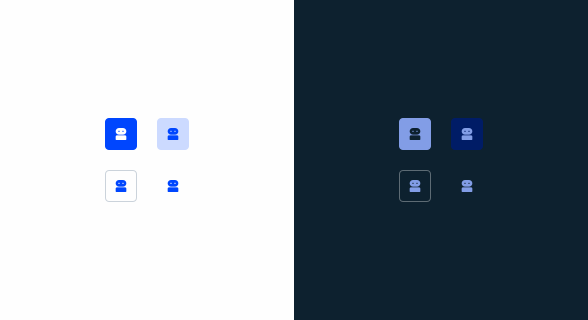
.small {
  padding: var(--spacing-6) var(--spacing-6);
  border-radius: var(--x-small-radius);
  icon: icon: 16px;
}
Regular
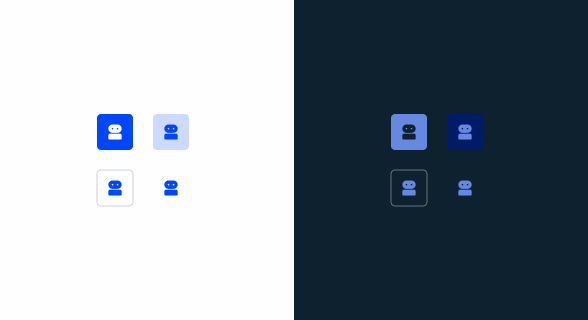
.regular {
  padding: var(--spacing-8) var(--spacing-8);
  border-radius: var(--x-small-radius);
  icon: icon: 20px;
}
Large
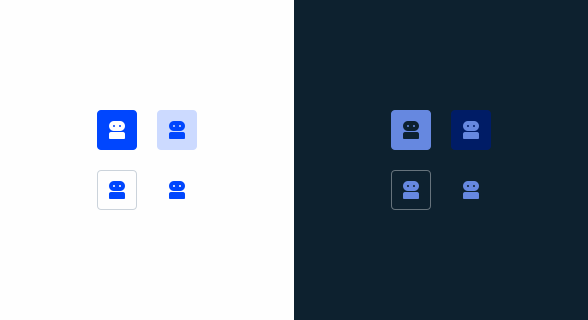
.large {
  padding: var(--spacing-8) var(--spacing-8);
  border-radius: var(--x-small-radius);
  icon: icon: 24px;
  }
Useful links
Consult our Figma file to access our assets and inspect them in dev mode.

This component is or will be provided by the Polygon framework. See its documentation to learn more.

This element is in line with the guidelines of the CDS (Cegid Design System). Find out more.
Behavior
Fixed Size
Button icons, by nature, must always have a fixed size, because the button only allows us to show one icon and this must be proportional in all scenarios. The height follows the button component so that it can be paired with action bars, for example. This component follows the same color states as the buttons.


Don’t use different sizes in the same set.
Hierarchy
Button icons hierarchy follows the same rules documented in the article on buttons.

Use different button hierarchies and in the following order: tertiary, secondary, primary.

Combine theme colors with grey.
Use secondary buttons of the same color together.
Case Studies

Read Mode: Making Content Feel Effortless and Understandable
A Visual Recap of 2025: how we enhanced chatbot communication