Most digital products have features that require waiting while something happens in the background. These processes are often triggered by users, which is why it’s important to notify them appropriately. Additionally, informing users of the outcome is equally important – whether it was successful or not.
In this article we’ll address ways to inform users that a task is running in the background, as well as how to handle common outcomes, such as error reports.
Starting the Process
Background tasks can be triggered in several ways. There’s no right or wrong way to start the process – the important thing is that users are informed and in control.
Since we usually deal with temporary and straightforward tasks, Toasts are the perfect component to immediately notifying the user that something is happening.
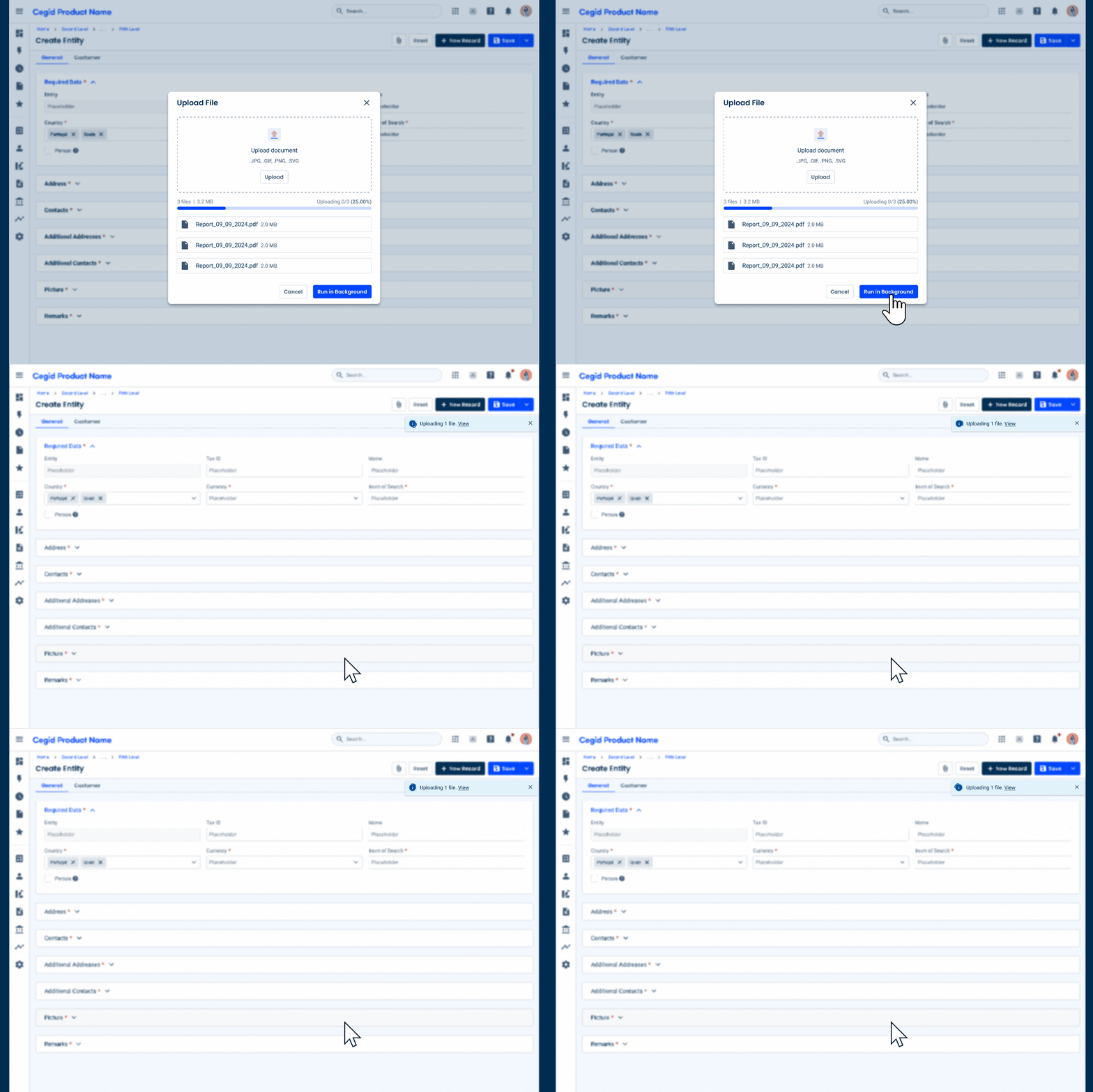
These Toasts may remain visible until the process is complete. However, if long wait times are expected, they should be dismissible to make sure they don’t interfere with the user’s experience.
If applicable, you should also consider adding a hyperlink that redirects the user to the screen where the background task is running (in the example above, clicking “View” would reopen the File Uploader modal).
Notifications
Since they are temporary and – as mentioned in the previous section – dismissible, Toasts alone may not meet all the product’s needs.
For this reason, the Notification Panel has recently undergone some changes meant to make it easier to keep track of background tasks.
Progress Indicator
Notification cards have a new variation that includes a Loading Button. This simple addition allows users to immediately know when they’re looking at a notification related to a task that is currently in progress.

These messages are relevant, but temporary. Therefore, they should be included in the In Progress notification group, as shown in the image.
It’s important to note that these notifications are merely informative and are not intended to track progress, since the loading uses its indeterminate state. If dealing with a time-consuming task, you should not rely solely on notifications and Toasts.
The Outcome
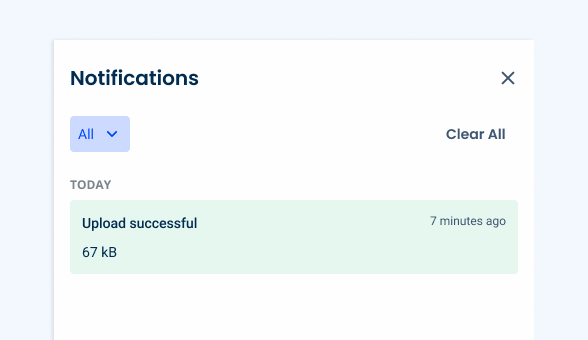
Once a task is complete, it’s best to let users know the outcome.
If the process went as expected, a success notification can be generated.
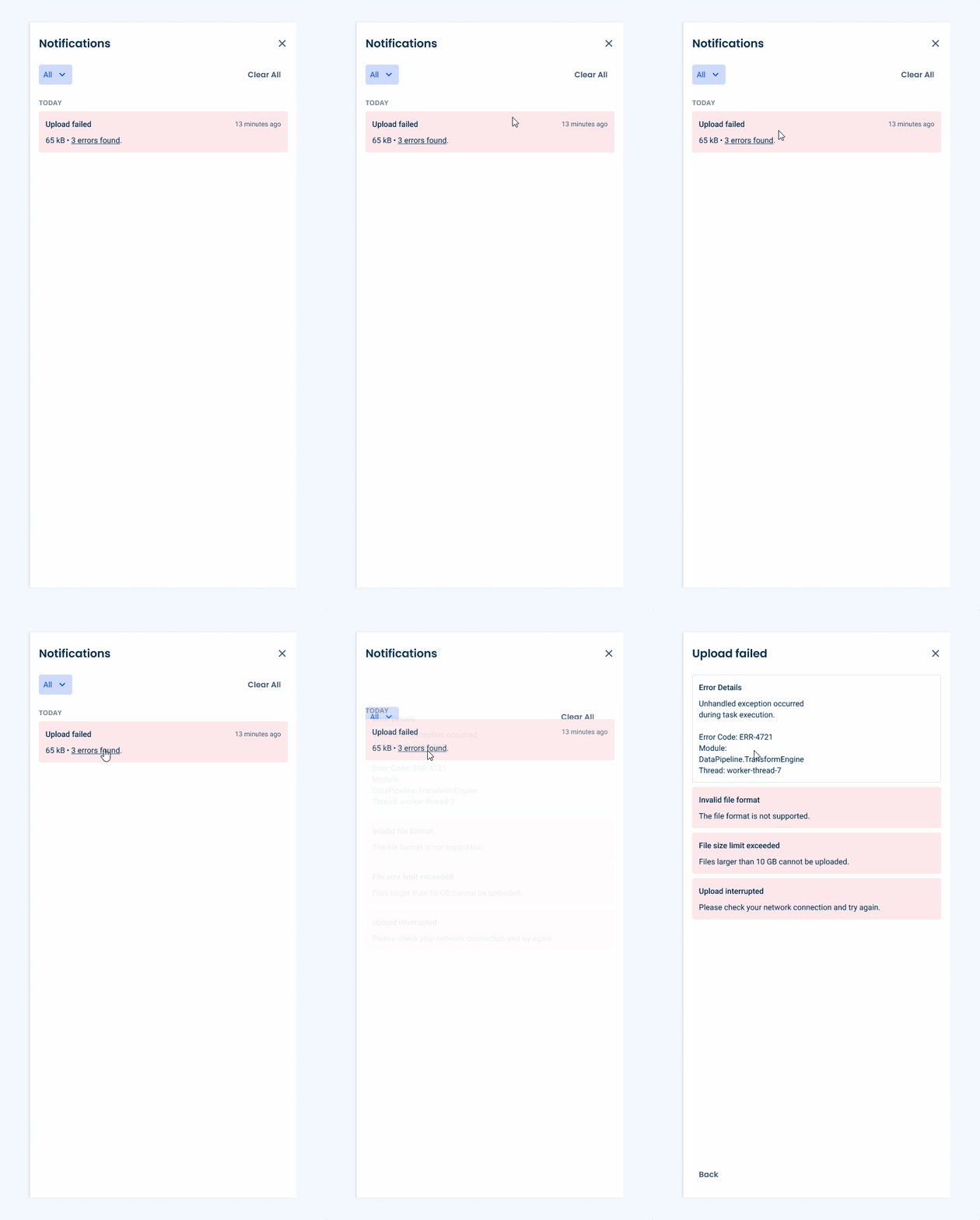
On the other hand, if something goes wrong, a warning or error notification should be displayed. In some cases, an error report may be necessary – which users can assess by clicking a hyperlink in the Notification Panel.
Please note that notifications related to the outcome of a task should not be included in the In Progress group.
Error Handling
Forms are where intention turns into action, whether by submitting data or completing tasks. But they are also where, more often than not, things go wrong. Missing fields, incorrect formats, and system errors are an inevitable part of any experience with forms.
Effective error handling is not just about telling users that something went wrong. It is about helping them get back on track with clarity, empathy, and as little friction as possible.
Indicators
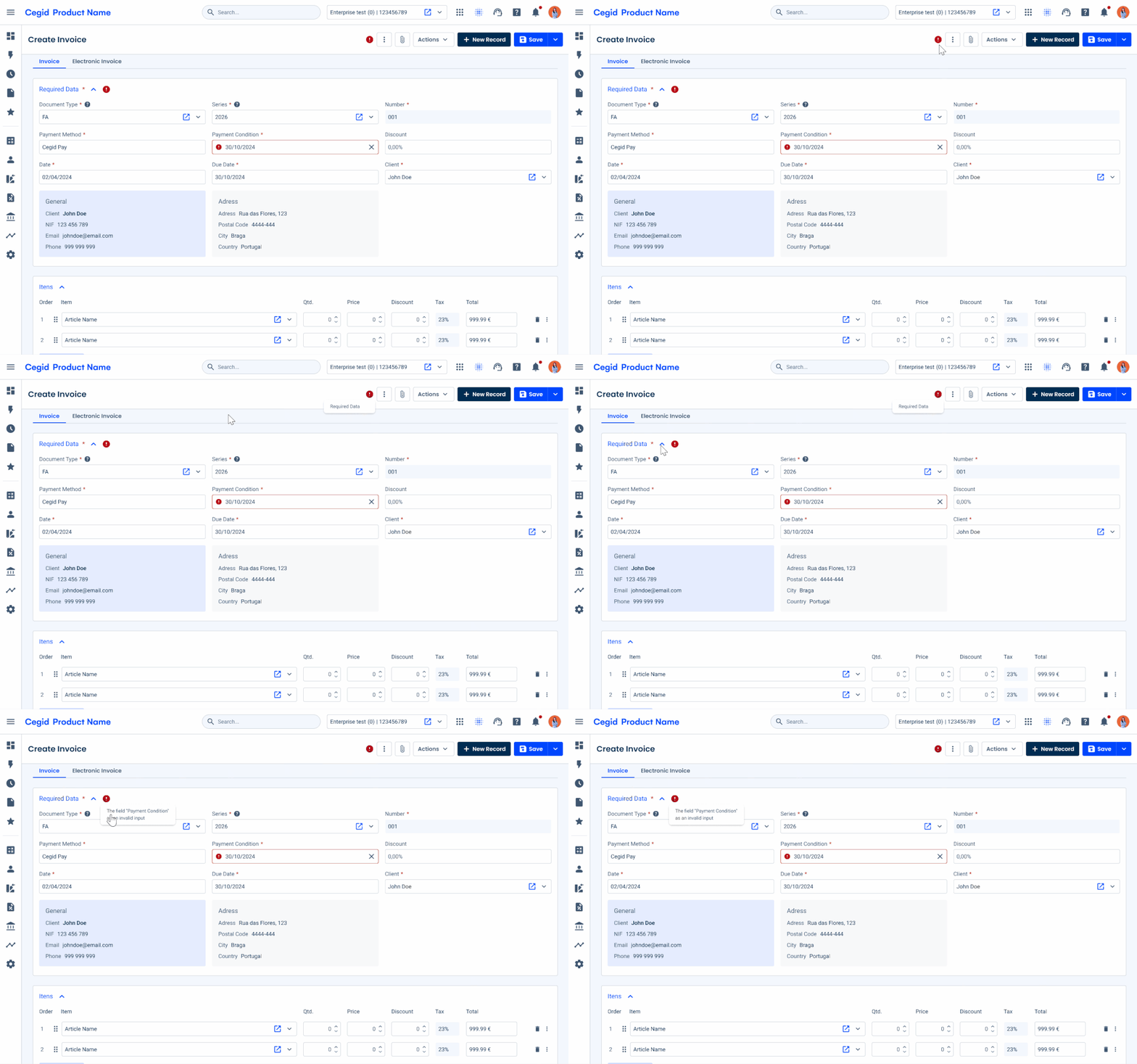
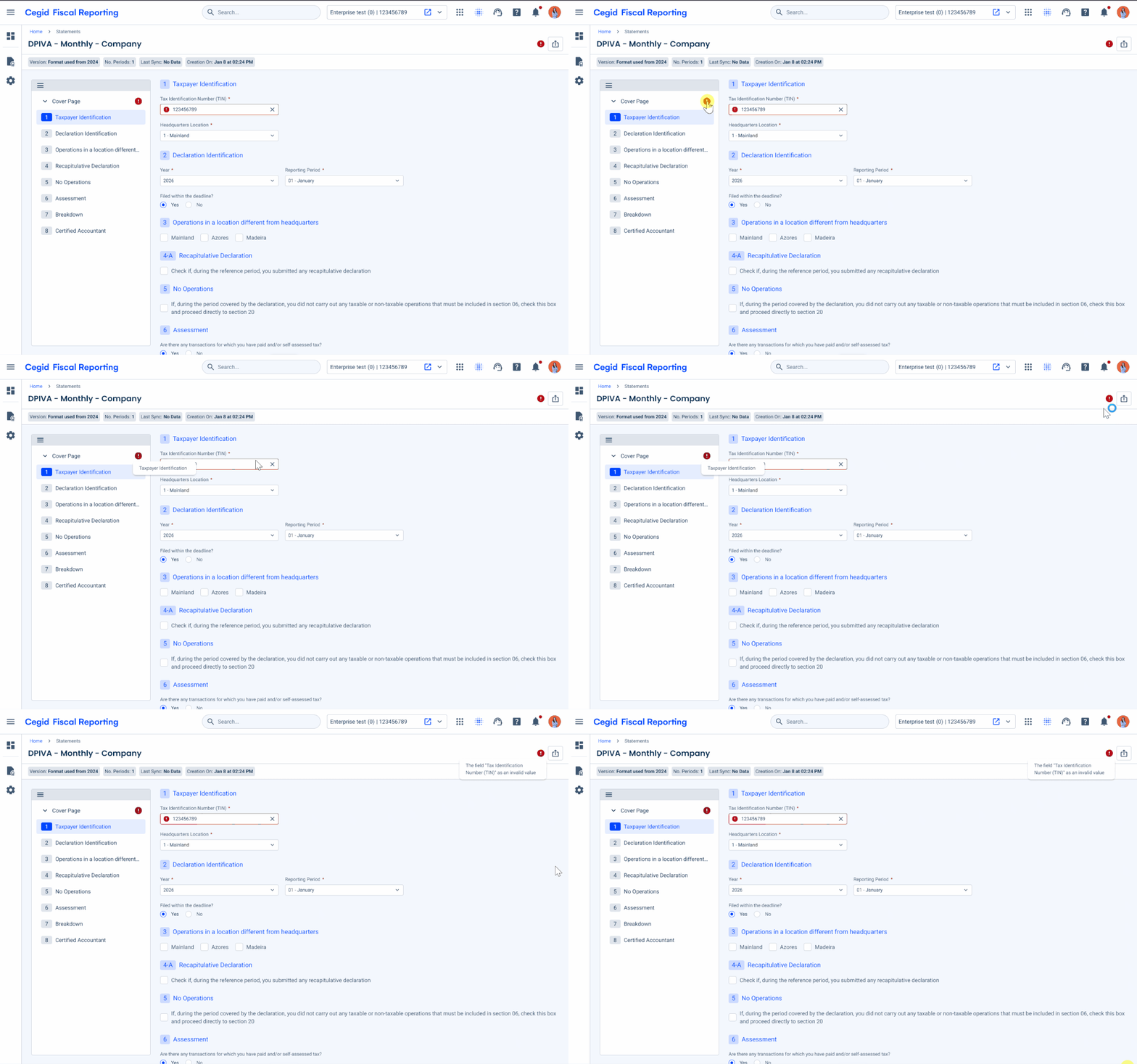
To clearly communicate that an error has occurred, an icon is always used alongside the message. The error circle icon, displayed in the error color, provides an immediate visual cue that something is wrong within the form the user is completing. This combination of icon and color helps users quickly identify where attention is needed, even before reading the message itself.
This icon is first applied to the Page Title, indicating that an error has occurred within a specific Expander or Tree View section. It helps surface issues at a higher level, allowing users to quickly understand where their attention is needed.
In more complex cases, such as a legal file where pages are organized within a Tree View, errors are first indicated at the item level within the Tree View. They are then reflected in the Page Title, reinforcing the presence of issues and ensuring they remain visible as users navigate through the form.
The Outcome
Conclusion
Effective management of background tasks plays a key role in maintaining a positive user experience, and error handling is an essential part of that process.
By informing users when a process begins, keeping them aware of its progress, and clearly communicating the final outcome, products can build trust and reduce uncertainty. When something goes wrong, clear and timely error feedback helps users understand what happened and how to move forward.
Components such as Toasts can provide immediate feedback when a task starts, while the Notification Panel offers a more persistent way for users to monitor activity. Communicating the result, whether it is a success, a warning, or an error, ensures that users stay informed and can take action when necessary. Thoughtful error handling closes the loop by not only flagging issues, but also guiding users toward a resolution.