Overflow Menu
An overflow menu is a UI component that houses secondary options or actions.

- Overview
- Specs
- Guidelines
Component
The overflow menu allows you to provide the user with a set of additional actions when carrying out a task.
It’s represented with an icon that represents more options when closed. When activated, it triggers a drop-down menu with additional options or actions.
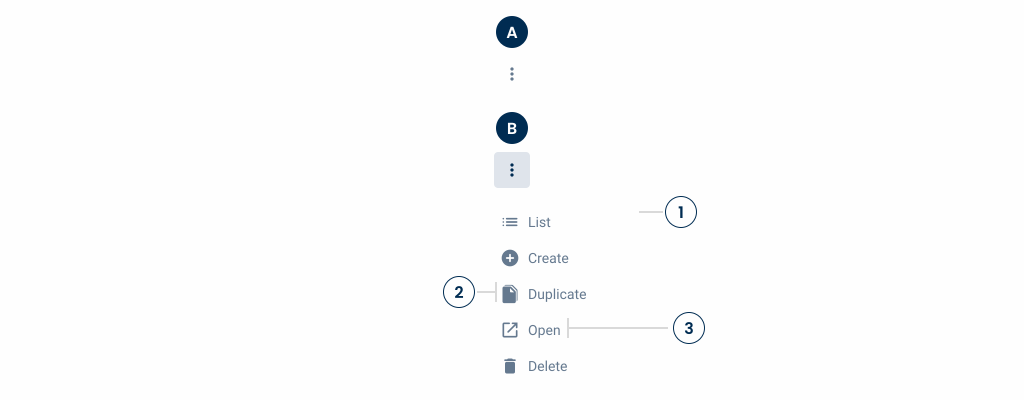
A: Closed overflow menu
B: Open overflow menu
1: Drop-down
2: Action/option icon
3: Action/option label
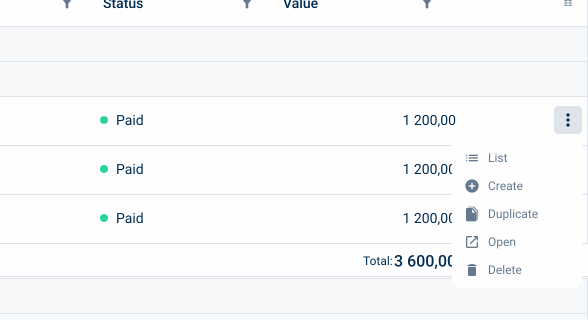
Used for:
Less important actions
For additional and less important actions such as “List” and “Duplicate”, the overflow menu prevents the design from becoming too “crowded”;
Destructive actions
As destructive actions must not be clicked on unintentionally, it is recommended to display the “delete” option in an overflow menu;
Complex interfaces
In interfaces and products with multiple functions in the same view, it’s recommended to use an overflow menu;
Contextual actions
In cases where certain actions are available under specific conditions for certain views, the overflow menu must be used;
Consistent navigation
To maintain consistency in certain component patterns, the overflow menu serves as a standard location for secondary actions across the product;
Don’t use for:
Frequently used actions
For frequently used actions, such as “Save”, it’s best to prioritize the action within the main actions, often represented as a button;
Minimal actions
When the view has only a few actions or options that can fit without cluttering the interface, an overflow menu may not be necessary;
Consistent visibility
In interfaces where maintaining consistent visibility of all actions is crucial for user engagement or task completion, hiding actions behind an overflow menu may hinder user interaction and lead to reduced usability;
Limited user control
If users expect to have direct control over all available actions without needing to navigate through menus, an overflow menu might limit their control within the interface.
Demo
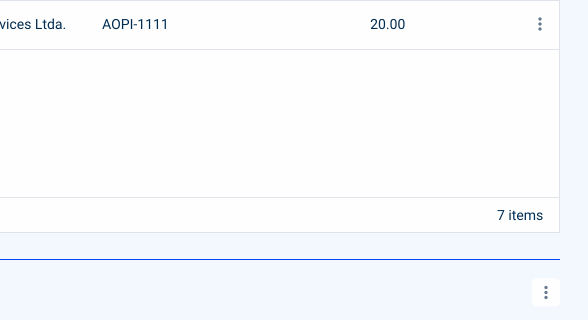
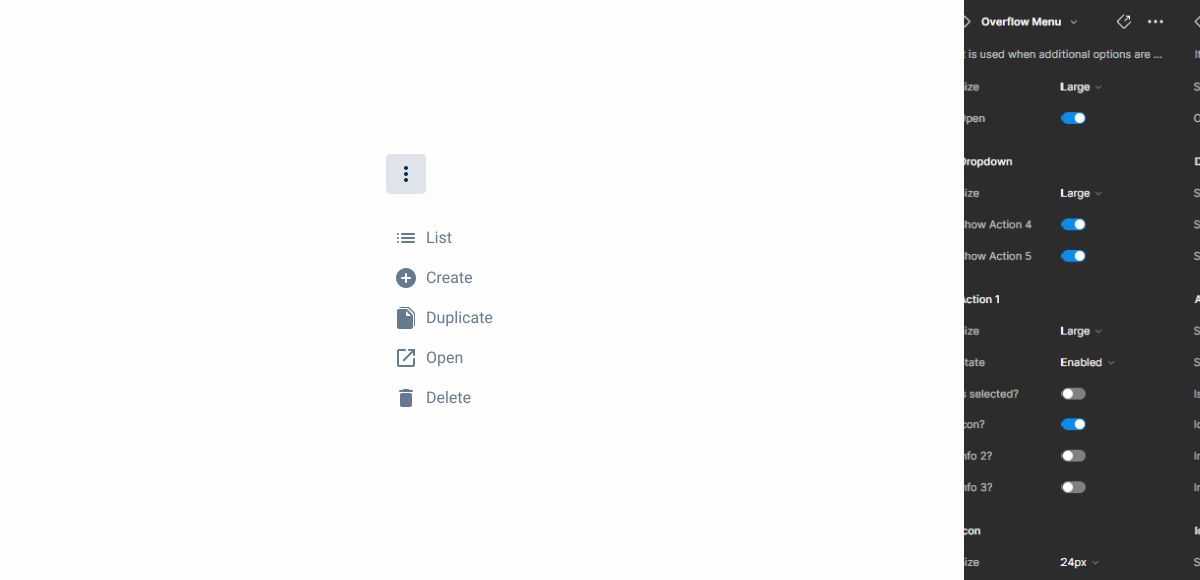
Access the Figma file and inspect element using Dev Mode.
Last Update
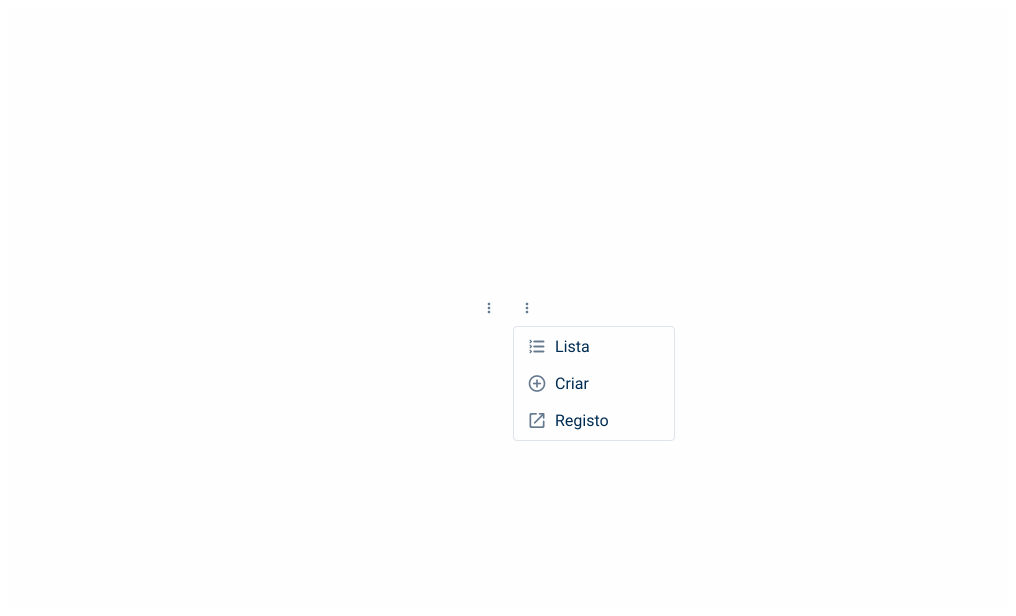
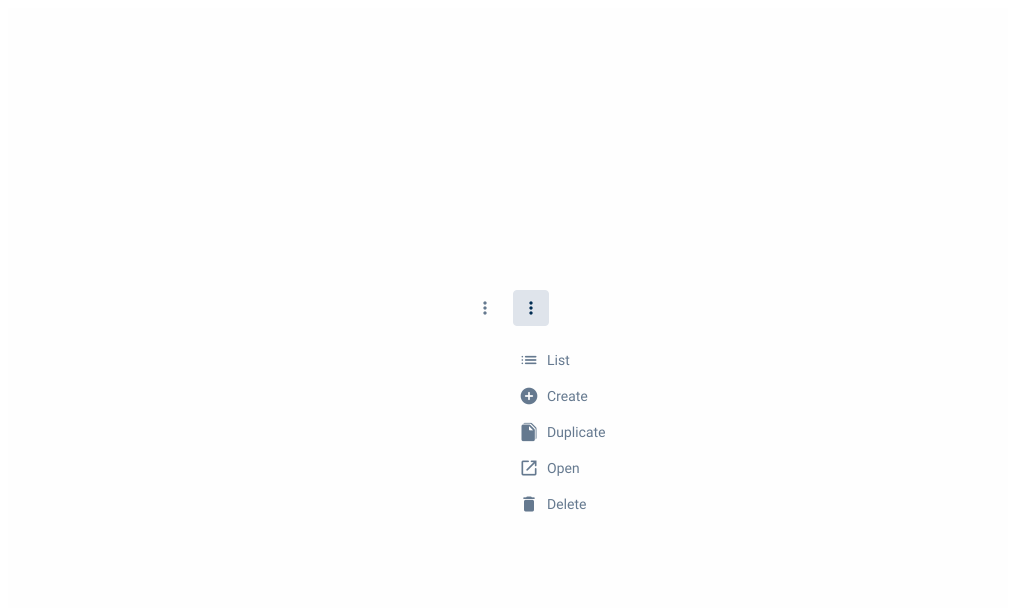
- Updated drop-down menu;
- Updated state color variables;
Related
Variations

Closed
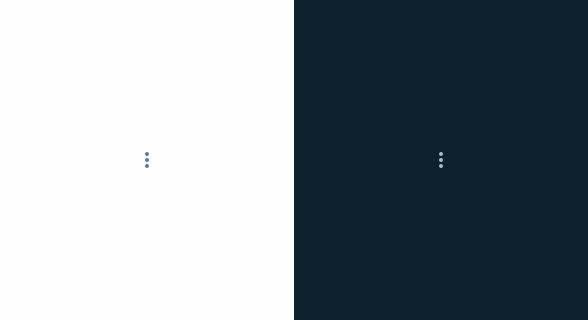
.closed {
background-color: var(--grey-1);
color: var(--grey-7);
}
Open
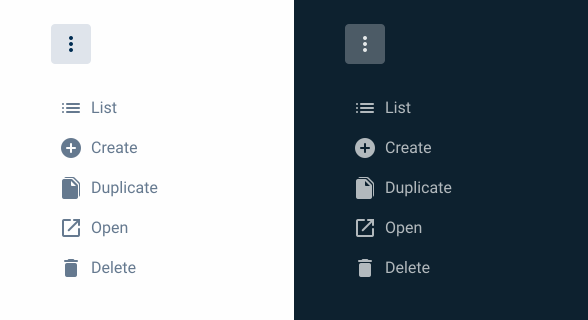
.opened {
background-color: var(--grey-4);
color: var(--grey-8);
}
Size
Small
.small {
  padding: var(--spacing-4);
  border-radius: var(--x-small-radius);
  icon: icon: 20px;
  }
Regular
.regular {
  padding: var(--spacing-8);
  border-radius: var(--x-small-radius);
  icon: icon: 20px;
  }
Large
.large {
  padding: var(--spacing-8);
  border-radius: var(--x-small-radius);
  icon: icon: 24px;
  }
Useful links

Consult our Figma file to access our assets and inspect them in dev mode.

This component is or will be provided by the Polygon framework. See its documentation to learn more.

This element is in line with the guidelines of the CDS (Cegid Design System). Find out more.
Behavior
Drop-Down Options Text
Ideally, for good UX practice, within drop-down menus, the options/actions label should be concise and short since the dedicated space is limited. This label should also be direct so the user can understand the action and decide faster.

Position
The position of the overflow drop-down menu must fit the available space, so that the drop-down menu is visible in all situations. The drop-down menu can then be aligned to the left or right of the button icon.
Dos & Dont’s
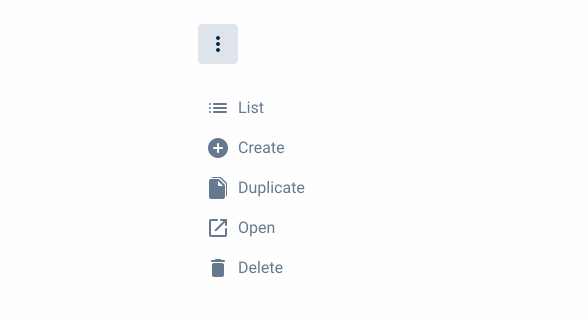
Texts should be clear and concise;
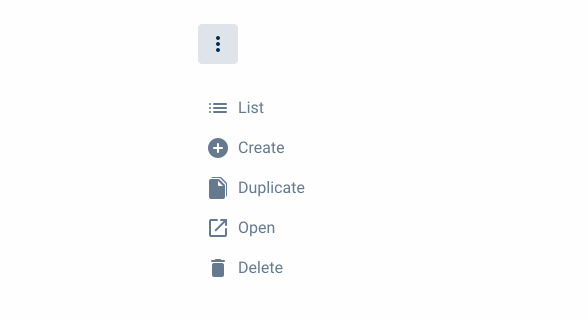
Whenever possible, incorporate iconography alluding to the action;
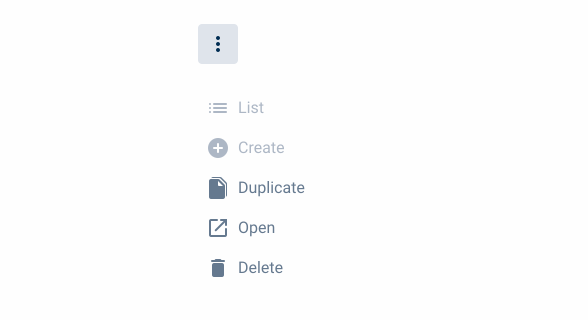
If a menu item is deactivated, it must be visually comprehensible;
Case Studies

Creating Context-Aware Notifications for a Better Experience

Read Mode: Making Content Feel Effortless and Understandable